
Email journaling creates a powerful, low-effort system for garden planning, reminders, and reflection. Several journaling apps work directly with email entries, too! You can always copy and paste emails into a journaling app or, in my case, a spreadsheet. It’s easy to email a note from my phone’s Notes app, along with photos, videos, or voice memos. This keeps me from having to spend extra time matching photos to journal entries later. I copy my prayer journal notes by hand into my physical prayer journal, which helps me remember them better and stay connected. This is a flexible system that can easily grow with your needs.
Step 1: Choose and Create a Dedicated Email Account
- Pick a free email provider. I use Gmail because it pairs especially well with Google Calendar. Google Sheets has long been a favorite of mine, and Google Drive is perfect for storing photos and videos. Gmail’s sorting isn’t the strongest, so be sure to set up and use clear labels or folders from the start.
- Create a new account with a clear name (e.g., yournamegardenjournal@gmail.com).
- Use a strong password and enable two-factor authentication for security.
Step 2: Set Up Basic Organization
- Create folders or labels such as “Garden 2026,” “Prayer Journal,” “Harvest Records,” and “Ideas.”
- (Optional) Link the email account to your phone’s native email and calendar apps for seamless access.
Step 3: Start Journaling on the Go
- From the garden or anywhere: Snap photos, write quick notes (date, observations, weather, etc.), attach images or links, and email them to yourself.
- Copy and paste any text messages related to what you are journaling about.
- Use descriptive subject lines like “2026 Garden – Tomatoes Week 4” or “Prayer July 17 Gratitude.” Think ahead about how you want to sort and find your entries later. I find that including the year, journal type (“Prayer,” “Garden,” “Food,” or “Health”), the name of the plant or person, and other key details makes searching much easier. I also journal about food and physical symptoms to help track my MS.
Step 4: Integrate Your Email Journal with Your Calendar
- Link the accounts — If using Gmail + Google Calendar, they work together automatically. For other providers, you can forward emails or manually add events.
- Set recurring reminders:
- Create calendar events for garden tasks (e.g., “Weekly Garden Check – Every Sunday at 9 AM”).
- In the event description or notes, include a link or search term for your journal email (e.g., search for “2026 Garden”).
- Turn journal emails into calendar entries:
- When you send a journal email, immediately create a matching calendar event (or use the “Create event” button that often appears in Gmail).
- Attach the email or add key details so everything stays connected.
- Use the calendar for planning:
- Add planting dates, expected harvest windows, and review dates (e.g., “End-of-Month Garden Review – Review journal emails”).
- Set reminders to check your journal inbox before major garden activities.
- Prayer journal integration: Add recurring quiet time blocks on your calendar and include a note in the event such as “Check prayer journal emails for patterns and answered prayers.”
Step 5: Enhance Your Entries
- Forward useful links, seed information, or articles straight into the journal.
- Keep everything searchable by using consistent keywords.
Step 6: Review and Reflect Periodically
- Use calendar alerts to prompt monthly or seasonal reviews of your journal emails.
- Summarize insights (what worked, what didn’t) and carry them forward to next year’s calendar and garden plans.
Why this system shines: The email journal captures moment-by-moment details and photos, while the calendar provides structure and gentle reminders. Together, they help me stay consistent with garden tracking, daily quiet time, and health tracking without feeling overwhelmed. It’s simple, mobile-friendly, and grows with my ever changing needs.
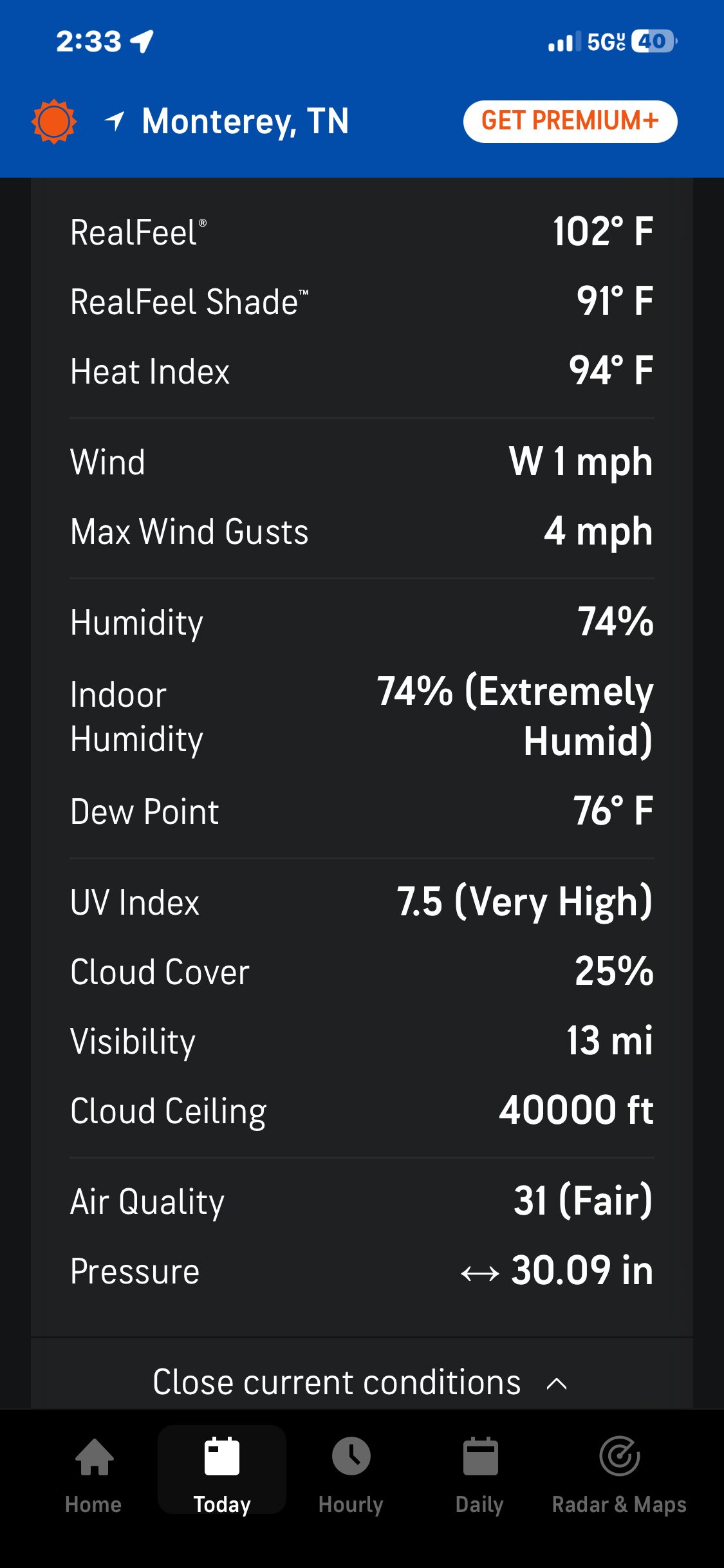
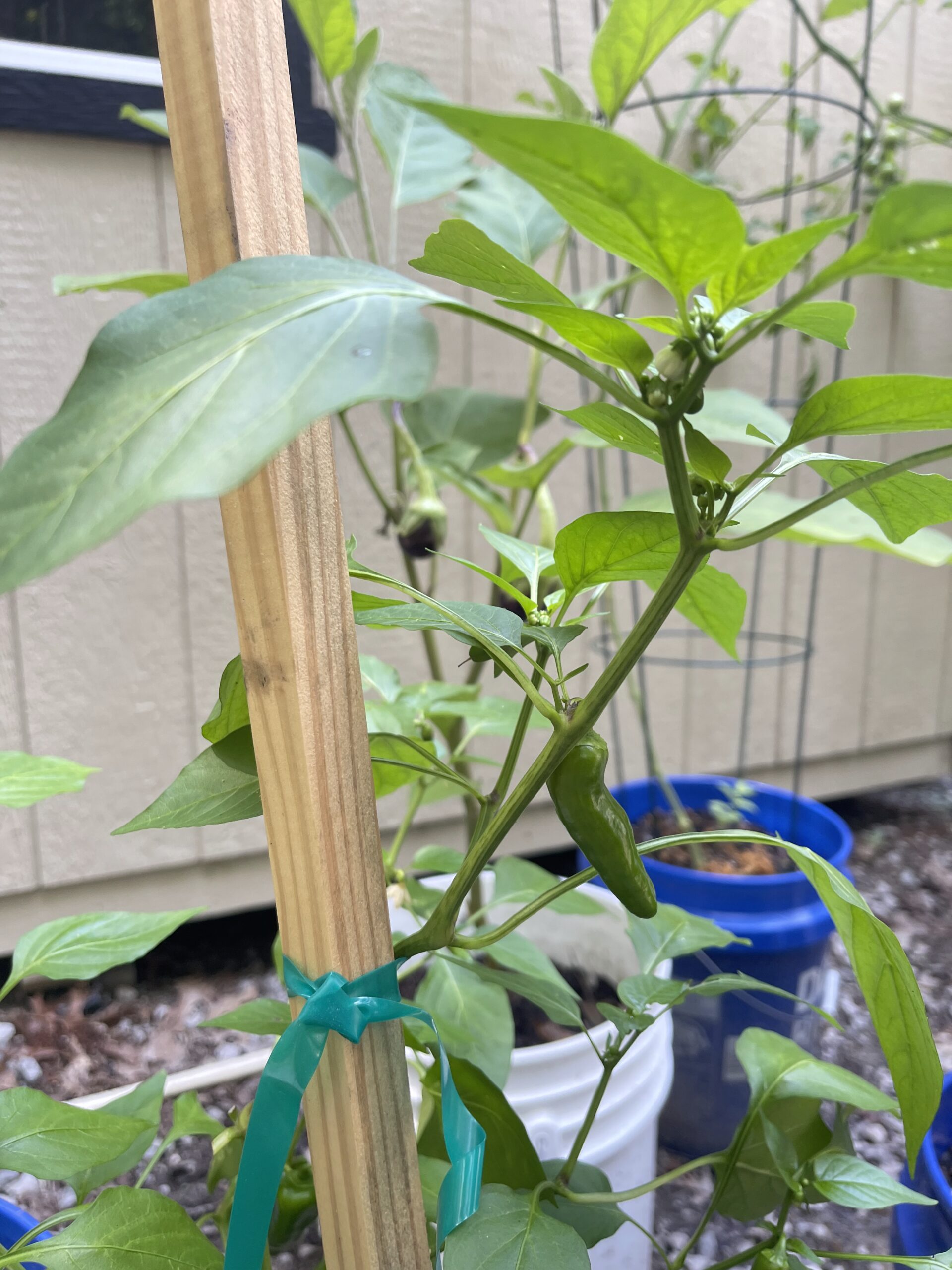
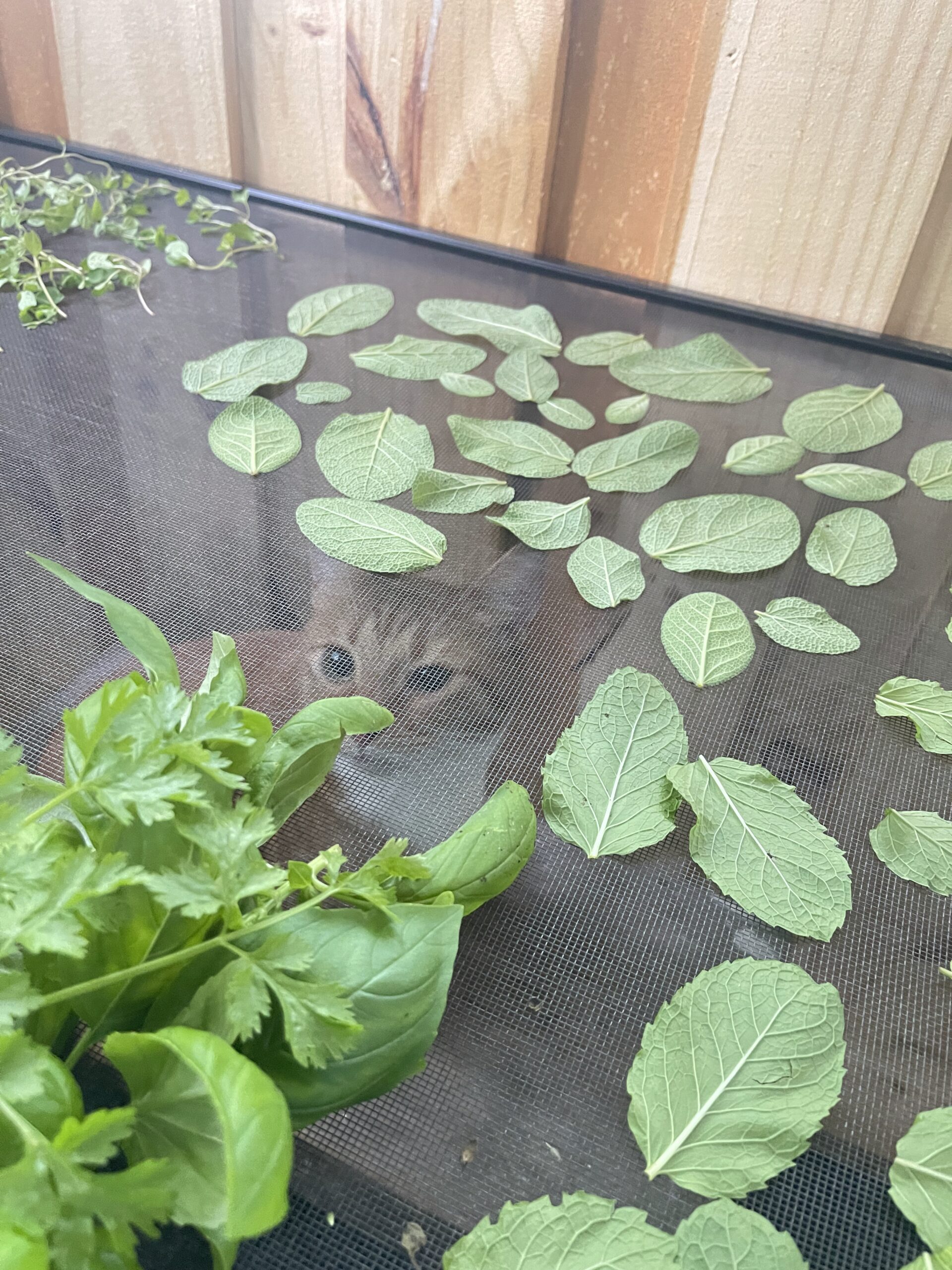
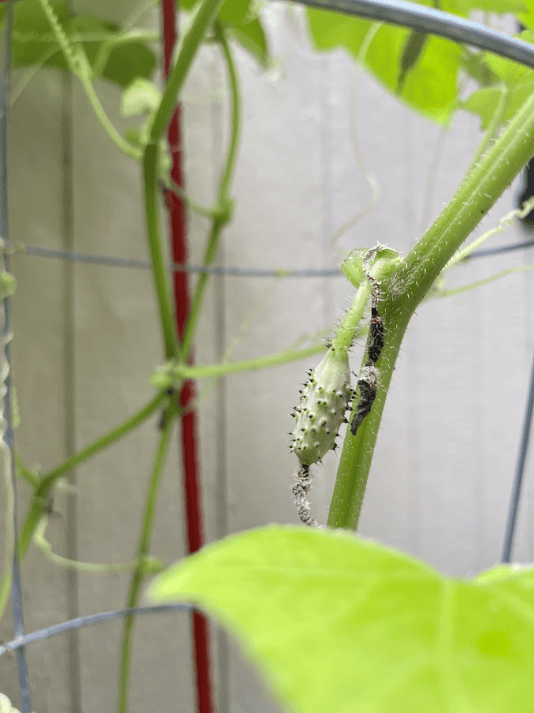
Some photos and screenshots I’ve emailed to my garden journal.
I found this just in time! About to start my gardening email journal 🙂